 Rachel Lin
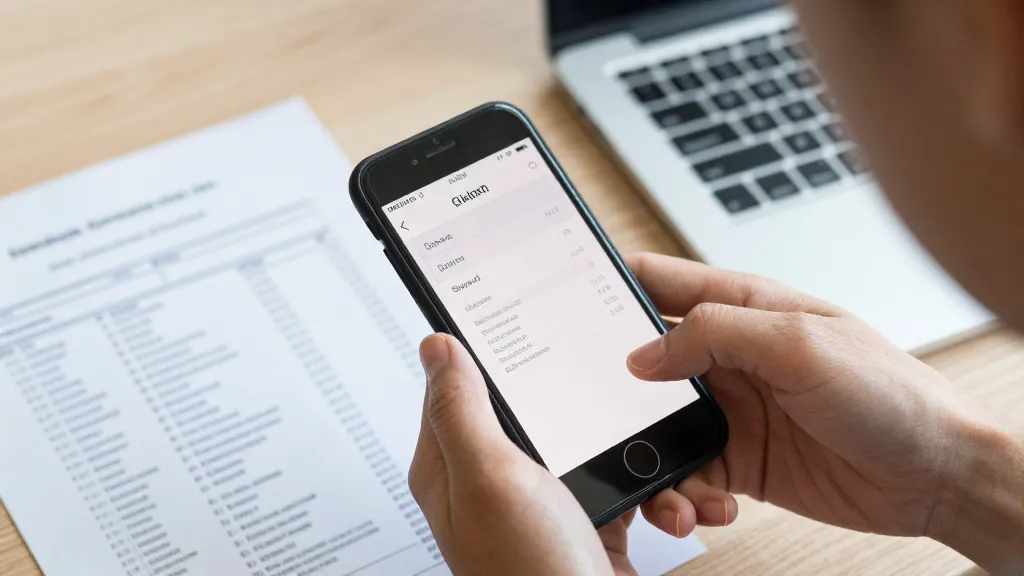
Extracting receipt fields to spreadsheet can save hours of manual data entry for businesses looking to streamline their operations. Whether you're an independent entrepreneur or an operations manager, automating this process can significantly boost efficiency and reduce errors. With the right no-code tools, you can turn receipt images into structured data without needing programming skills. This article guides you through the steps of automating receipt data extraction, from choosing the best OCR tools to setting up webhooks for real-time spreadsheet updates. You'll learn how to handle different receipt formats, troubleshoot common issues, and ensure your data is accurate and secure. By the end, you'll have a reliable system for managing receipt data with minimal effort.
Extract Receipt Fields to Spreadsheet with No-Code Tools
Automating receipt data extraction streamlines financial tracking, inventory management, and expense reporting by eliminating the need for manual data entry. This process transforms unstructured receipt images into structured, searchable data that can be easily integrated into spreadsheets. With no-code tools, users can build custom workflows that extract, parse, and update data automatically, saving time and reducing the risk of errors.
Why Automate Receipt Data Extraction?
Automating receipt data extraction improves efficiency and reduces manual effort by converting scanned or photographed receipts into structured data. This structured format allows businesses to track expenses, monitor spending patterns, and generate reports with minimal intervention. Manual entry is prone to mistakes, and automated systems ensure consistency and accuracy across large volumes of receipts.
Tools for Extracting Receipt Fields
Tools like OCR (Optical Character Recognition) and JSON parsers are essential for extracting structured data from receipts. OCR converts images of text into machine-readable data, while JSON parsers organize this data into a structured format. Together, these tools enable the extraction of key fields such as total amount, date, and vendor name. No-code platforms simplify the integration of these tools, allowing users to build workflows without writing code.
Connecting OCR and JSON Parsers with Webhooks
Integrating OCR and JSON parsers with webhooks enables automated spreadsheet updates. Webhooks act as a bridge between data extraction tools and spreadsheet applications, ensuring that extracted data is instantly updated in real time. This integration eliminates the need for manual data transfer and keeps records current. No-code platforms provide user-friendly interfaces to connect these tools, making it easy to automate data workflows for businesses of all sizes.
How to Use OCR to Extract Receipt Fields
Optical Character Recognition (OCR) technology is essential for converting scanned receipt images into machine-readable text. By leveraging no-code OCR tools, users can extract structured data such as total amounts, dates, and itemized lines without requiring technical expertise. This section explores how to select the most suitable OCR tool and understand the constraints of OCR output.
- Select an OCR tool that supports receipt-specific recognition, such as Google Vision API or ReadReceipt, to improve accuracy for financial and date fields.
- Upload receipt images to the OCR tool, ensuring they are clear, well-lit, and properly oriented for optimal text recognition.
- Review the OCR output to verify that key fields like total amount and date are correctly extracted and formatted.
- Export the OCR results as JSON or CSV to integrate with downstream processing tools for spreadsheet creation.
Choosing the Right OCR Tool
Choosing the Right OCR Tool involves evaluating features such as receipt-specific recognition, ease of use, and output format compatibility. Tools like Google Vision API offer advanced AI models for high accuracy, while ReadReceipt is designed for quick, user-friendly receipt parsing. Consider your workflow requirements, such as whether you need batch processing or real-time extraction, to determine the best fit for your needs.
OCR Output and Its Limitations
OCR Output and Its Limitations highlight the trade-offs between automation and precision. While OCR can efficiently extract most text, it may struggle with faded ink, skewed images, or non-standard layouts. For example, handwritten notes or poor-quality scans can lead to misinterpretation of numbers or dates. To mitigate these issues, users should preprocess receipts by enhancing clarity and ensuring consistent formatting before running OCR.
Parse Receipt Data with JSON Parser
Parsing receipt data with a JSON parser transforms unstructured OCR output into structured fields like total amount, date, and merchant name. This step is essential for organizing data into spreadsheets and making it actionable for business insights.
- Use no-code tools like Make or n8n to automate JSON parsing and connect them to OCR tools.
- Define custom parsing rules to extract specific fields based on receipt layout and content.
- Validate parsed data to ensure accuracy and handle inconsistencies in OCR output.
- Map parsed fields to spreadsheet columns for seamless data integration.
Automating JSON Parsing with No-Code Tools
No-code tools like Make or n8n allow users to automate JSON parsing without coding. These platforms provide pre-built templates that can process OCR output and extract structured fields. By configuring these tools, users can map OCR data to specific spreadsheet columns, ensuring data consistency and reducing manual effort.
Handling Different Receipt Formats
Handling different receipt formats requires custom parsing rules to accommodate variations in layout and content. Some receipts may have unique field placements or formatting that standard parsers cannot handle. By defining custom rules, users can ensure accurate data extraction across diverse receipt types, improving the reliability of automated data collection.
Set Up Webhooks for Automated Spreadsheet Updates
Webhooks enable real-time data transfer between tools, allowing automated spreadsheet updates once receipt data is extracted and parsed. By linking OCR and JSON tools to spreadsheet apps like Airtable or Google Sheets via webhooks, users can streamline workflows and ensure data is always current without manual intervention.
- Choose a no-code platform like Make or Zapier to configure webhooks between OCR, JSON parser, and spreadsheet tools.
- Set up triggers in the OCR tool to send data to the webhook endpoint once receipt fields are extracted.
- Use the JSON parser output as input for the webhook, ensuring structured data is passed to the spreadsheet app.
- Test the webhook connection to confirm data flows correctly and updates the spreadsheet automatically.
Connecting OCR and JSON Tools to Webhooks
Connecting OCR and JSON tools to webhooks involves setting up the no-code platform to act as an intermediary. Once the OCR tool processes a receipt, it sends the extracted data to the webhook URL defined in the platform. The JSON parser then transforms this data into a structured format, which is forwarded to the spreadsheet application. This integration ensures that the spreadsheet is automatically updated with new receipt entries as they are processed.
Securing Webhook Connections
Securing webhook connections is critical to prevent unauthorized access and maintain data integrity. Most no-code platforms offer authentication options such as API keys or OAuth tokens to ensure only trusted sources can send data. Additionally, encrypting data in transit using HTTPS adds another layer of protection. Users should also monitor webhook activity for any suspicious behavior, ensuring that their automated workflows remain both efficient and secure.
Troubleshoot Common Issues in Receipt Automation
Troubleshooting receipt automation workflows is essential to ensure data accuracy and system reliability. Common issues such as OCR errors, JSON parsing failures, and webhook connection timeouts can disrupt the process, but no-code tools offer built-in debugging features to identify and resolve these problems effectively.
- Use no-code debugging tools to monitor automation runs and identify errors in real time.
- Review log files and set up error alerts to diagnose issues quickly and improve system stability.
- Regularly test workflows with different receipt formats to refine OCR and parsing accuracy.
- Check webhook connection settings and timeouts to ensure reliable data transmission.
Debugging OCR and JSON Parsing Errors
Debugging OCR and JSON parsing errors involves analyzing the output of each step in the automation pipeline. No-code platforms often include built-in logs and error tracking to show where the process fails. For example, if the OCR tool misreads a date or price, the JSON parser might throw an error. By reviewing these logs, users can adjust settings or retrain models to improve accuracy.
Monitoring Webhook Performance
Monitoring webhook performance ensures that data is transmitted reliably and efficiently. If a webhook connection times out or fails, it could be due to incorrect URL configurations, authentication issues, or network problems. Most no-code tools allow users to set up alerts for failed connections and test endpoints manually. Regular checks and adjustments help maintain the integrity of the automation process.
Frequently Asked Questions
How do I extract receipt data using OCR?
Use an OCR tool like Google Keep or Adobe Scan to convert receipt images into text. Then, extract key fields like total and date using no-code tools like Zapier or Integromat.
Can I automate receipt processing without coding?
Yes, no-code platforms like Zapier and Integromat allow you to automate receipt processing. Connect OCR tools, JSON parsers, and spreadsheet apps to streamline data extraction and formatting.
What tools can I use to parse JSON receipt data?
Use JSON parsers like JQ or no-code tools like Airtable and Zapier to convert JSON data from OCR tools into structured formats like Excel or CSV.
How do I connect OCR to a spreadsheet using webhooks?
Set up a webhook with tools like Zapier to send OCR data to a spreadsheet. Configure the webhook to trigger on receipt data and map fields to the spreadsheet columns.
Next Steps for Receipt Automation
Automating receipt data extraction using no-code tools can save time and reduce errors. By combining OCR, JSON parsing, and webhooks, you can streamline the process of converting receipts into structured data.
Start by choosing the right OCR tool and connecting it to a JSON parser. Then, use webhooks to send the data to your preferred spreadsheet format. This approach offers a practical way to manage receipt data without coding.