 Rachel Lin
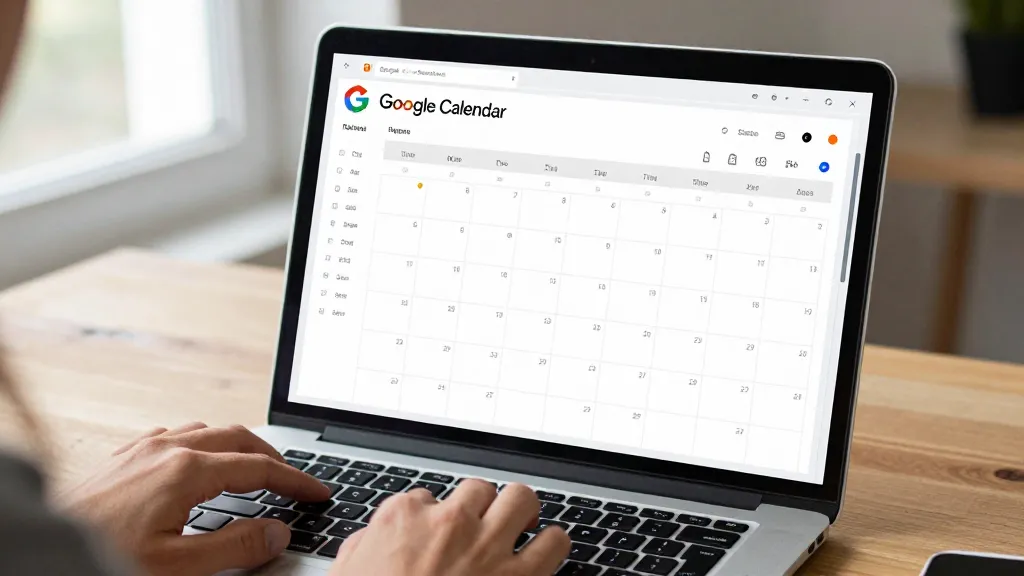
Managing project deadlines and team schedules can be a logistical nightmare, especially when juggling multiple tools. Syncing your Notion database with Google Calendar can streamline this process by keeping dates up to date in real time. Whether you're an independent entrepreneur or an operations manager, the notion database sync with google calendar can save you hours of manual updates and reduce scheduling conflicts. This guide will walk you through setting up a two-way date sync that keeps both platforms in sync effortlessly.
We’ll start by exploring the use cases and benefits of real-time date synchronization, then move on to setting up your Notion database for seamless integration. Next, you’ll learn how to create a no-code automation workflow that updates dates in both directions, even when there are format mismatches.
Finally, we’ll cover troubleshooting tips for common sync issues and advanced strategies to optimize your sync process. Whether you’re looking to enhance accuracy or add user notifications, this guide provides practical, actionable steps to make your Notion and Google Calendar integration work for you.
Why Sync Notion Database with Google Calendar
Syncing Notion with Google Calendar streamlines date management by keeping both platforms in sync. This integration is especially valuable for teams and individuals who rely on multiple tools to track tasks, manage projects, and coordinate schedules. By linking these tools, users can avoid errors, reduce redundant work, and ensure accurate, up-to-date information across all platforms.
Use Case: Project Deadlines and Team Scheduling
One of the most common use cases for syncing Notion with Google Calendar is managing project deadlines and team schedules. When a project timeline changes in Notion, such as a task deadline or milestone, the update automatically reflects in Google Calendar. This ensures that all team members have the latest information without needing to manually adjust their calendars, minimizing the risk of missed deadlines or scheduling conflicts.
Benefits of Real-Time Date Sync
Real-time date synchronization between Notion and Google Calendar eliminates the need for manual updates, saving time and reducing the chance of errors. When a date is changed in one app, the other updates instantly, maintaining consistency across all platforms. This is particularly beneficial for users who manage multiple projects, events, or recurring tasks, as it ensures that all relevant information is always current and accessible.
Setting Up the Notion Database for Sync
Before syncing your Notion database with Google Calendar, it's essential to structure your database properly to ensure seamless data transfer. This section outlines the key steps to prepare your Notion database and format your date fields correctly for successful synchronization.
Preparing Your Notion Database for Sync
To begin, ensure your Notion database contains a date field that will sync with Google Calendar. This field should represent the event date you want to reflect in your calendar. Consider adding a 'Calendar Event ID' field as a unique identifier to help track specific events. This ID can be used to match events between Notion and Google Calendar, making it easier to update or delete entries accurately.
Date Field Formatting Best Practices
Formatting your date field correctly is crucial for compatibility with Google Calendar. Use the YYYY-MM-DD format for consistency and to avoid parsing errors. Avoid any additional text or symbols in the date field to ensure smooth synchronization. Additionally, verify that your date field is set to a standard time zone if your team operates across different regions, as this can affect how dates are interpreted and displayed.
Two-Way Date Sync with No-Code Tools
Creating a two-way date sync between Notion and Google Calendar requires using no-code automation tools like Zapier or Make. These platforms allow you to set up triggers that update events in both platforms when changes occur, ensuring your schedules stay aligned without manual intervention.
- Connect your Notion database and Google Calendar accounts to the automation tool of your choice.
- Set up triggers that detect changes in the date field of your Notion database and update the corresponding event in Google Calendar.
- Create reverse triggers to update the Notion database when a Google Calendar event is modified, ensuring both platforms reflect the same date.
- Avoid manual editing in either app to maintain the integrity of the sync and prevent conflicts.
Setting Up the Automation Workflow
Setting up the automation workflow involves connecting your Notion database and Google Calendar through a no-code platform. Start by selecting the trigger event, such as a date change in your Notion database. Then, map the date field to the corresponding event in Google Calendar to ensure accurate updates. This setup ensures that any change in one platform automatically reflects in the other.
Handling Date Format Mismatches
Handling date format mismatches is crucial to avoid sync errors. Ensure both platforms use the same date format, such as YYYY-MM-DD, to prevent misinterpretation. If discrepancies arise, use the automation tool's date conversion feature to standardize the format. This step ensures that all date-related updates are consistent and reliable across both Notion and Google Calendar.
Troubleshooting Common Sync Issues
Troubleshooting sync issues between Notion and Google Calendar is essential for maintaining accurate and consistent date updates. Common problems often arise from date format mismatches, time zone discrepancies, or incorrect field mapping. Addressing these issues ensures that your calendar events remain in sync with your Notion database without manual intervention.
Common Date Sync Errors and Fixes
One of the most frequent errors during sync is a mismatch in date formats. Notion and Google Calendar may interpret dates differently, especially if one uses a 12-hour format and the other a 24-hour format. To fix this, ensure all dates are formatted consistently across both platforms, using either MM/DD/YYYY or DD/MM/YYYY. If using a no-code tool like Zapier or Integromat, check the date parsing settings to match the expected format for each platform.
Time Zone and Field Mapping Tips
Time zone differences can also lead to sync failures or misaligned events. If your Notion database is set to a different time zone than your Google Calendar, events may appear at the wrong time or not appear at all. To resolve this, configure both platforms to use the same time zone, typically your local time zone or the time zone of your team. Additionally, ensure that your sync tool respects the time zone settings of both apps during the workflow setup.
Advanced Tips for Optimizing the Sync
To maximize the effectiveness of your Notion-Google Calendar sync, consider implementing filters and notifications that improve accuracy and user engagement. These advanced strategies ensure your automation works efficiently without overwhelming users with unnecessary updates.
- Use filters to sync only relevant events and reduce unnecessary data transfers.
- Add notifications to alert users when events are updated in both platforms.
- Test your sync with a small sample of data before deploying it widely.
Enhancing Sync Accuracy with Filters
Enhancing Sync Accuracy with Filters involves setting conditions that define which entries from your Notion database should trigger calendar updates. For example, you can filter out draft tasks or events that are not yet finalized. This reduces the volume of data processed and ensures only meaningful updates are sent to Google Calendar, improving performance and reducing potential errors.
Filters also allow you to exclude events that are not time-sensitive or do not require calendar integration, such as internal notes or recurring tasks. By customizing these rules, you can maintain a clean, focused calendar that aligns precisely with your project timelines and team schedules.
Adding User Notifications for Sync Updates
Adding User Notifications for Sync Updates ensures that all stakeholders are informed when changes occur across both platforms. This is especially useful for teams working on shared projects, as it eliminates the need for manual follow-ups. Notifications can be set to alert users via email or in-app messages whenever an event is added, modified, or removed.
However, it's important to balance notification frequency to avoid overwhelming users. Consider setting thresholds, such as only notifying when a key deadline is updated, or when a task status changes. This keeps users informed without disrupting their workflow.
Frequently Asked Questions
How do I ensure Notion and Google Calendar sync dates correctly?
Ensure date fields are formatted consistently across both platforms. Use no-code tools like Zapier or Make to set up two-way sync workflows. Regularly test the sync process to catch and resolve any issues early.
Can I sync events from Google Calendar back to Notion automatically?
Yes, with two-way sync tools like Zapier or Make, you can automate the process of updating Notion database entries when Google Calendar events change. This ensures bidirectional updates between both platforms.
What should I do if dates aren't updating in both apps?
Check for date format mismatches and ensure field mappings are correct. Review the automation workflow for errors, and verify that both platforms are using the same time zones. If needed, adjust settings or use filters to refine the sync process.
Is it possible to sync multiple Notion databases with Google Calendar?
Yes, most no-code tools allow you to connect multiple Notion databases to Google Calendar. You can set up separate workflows for each database or combine them into a single sync process depending on your needs.
Next Steps for Effective Sync
Syncing Notion with Google Calendar ensures real-time updates and improved productivity. A well-configured workflow minimizes manual effort and reduces errors. By addressing common issues and refining your setup, you can achieve a seamless two-way sync.
Start by preparing your Notion database and setting up a reliable automation tool. Regularly test and refine your sync process to optimize accuracy and efficiency. With the right approach, you can keep your schedules and project timelines aligned effortlessly.